> ## Documentation Index
> Fetch the complete documentation index at: https://docs.raycaster.ai/llms.txt
> Use this file to discover all available pages before exploring further.
# Filtering and Sorting
> Learn how to filter and sort data effectively in Raycaster AI Workspace
## Using Filters to Find What You Need
Filters help you quickly find specific information in your sheets by showing only rows that match your criteria. This is especially helpful when working with large datasets.
 ## Creating Basic Filters
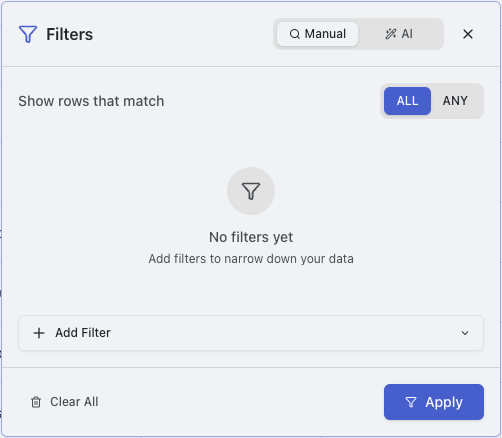
Click the "Filter" button in the toolbar to open the filter panel
Configure your filter by selecting:
* **Column**: Choose which column to filter on
* **Operation**: Select the comparison operation
* **Value**: Enter the value to compare against
Click "Apply" to filter your data
Create "Group filters" to combine groups of different filters together within a group
## AI Natural Language Filtering
Raycaster's AI assistant can help you create complex filters using natural language queries. Instead of manually configuring multiple filter conditions, simply describe what you're looking for in plain English.
Click the filter button. then select "AI" from the options
Type your filtering request in natural language. For example:
* "Show me companies in biotech with more than 100 employees"
* "Filter for people who work at startups founded after 2020"
* "Show only companies that have raised funding in the last year"
The AI will translate your request into the appropriate filter conditions and apply them automatically
You can review the generated filters in the filter panel and modify them if needed.
Try to be specific in your natural language queries. The more detail you provide about what you're looking for, the more accurate the AI-generated filters will be.
### Natural Language Filter Examples
Here are some examples of effective natural language filter queries:
* **Industry and Size**: "Show technology companies with over 500 employees"
* **Location and Funding**: "Filter for startups in California that have raised Series A funding"
* **Date Ranges**: "Show companies founded between 2018 and 2022"
* **Multiple Criteria**: "Find biotech companies in Boston with female CEOs and over \$10M in funding"
* **Exclusions**: "Show all companies except those in the finance industry"
The AI assistant learns from your data structure and column names to provide more accurate filtering suggestions over time.
### Combining Filters
For more complex filtering needs, you can combine multiple filter conditions:
After creating your first filter, click "Add Filter" to add more conditions
Choose how the conditions relate to each other:
* **AND**: All conditions must be met (default)
* **OR**: Any condition can be met
For even more complex logic:
* Click "Add Group" to create a nested group of conditions
* Groups can have their own AND/OR relationship
* You can combine groups with individual conditions
### Filter Logic Examples
Example of combining filters with AND logic:
* Column "Industry" contains "biotech" AND
* Column "Funding" is greater than "5000000" AND
* Column "Country" equals "United States"
This would show only biotech companies in the United States with more than \$5M in funding.
Example of combining filters with OR logic:
* Column "Industry" contains "biotech" OR
* Column "Industry" contains "pharma" OR
* Column "Industry" contains "medical devices"
This would show companies from any of these three industries.
## Clearing Filters
To remove filters and return to viewing all data:
1. Click the "Filter" button in the toolbar to open the filter panel
2. Click "Clear All" to remove all filters
3. Alternatively, click the "X" next to individual filters to remove them selectively
## Sorting Data
Sorting helps you organize your data in a meaningful order, making it easier to analyze and understand patterns.
## Basic Sorting
To sort by a single column:
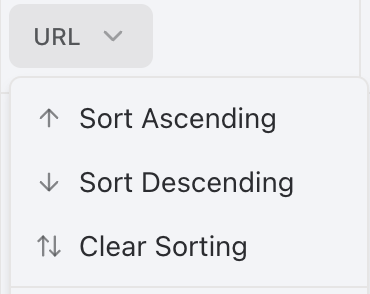
Click directly on the column header you want to sort by
* First click: Sort ascending (A→Z, 1→9)
* Second click: Sort descending (Z→A, 9→1)
* Third click: Remove sorting
An arrow appears in the column header showing the sort direction
* ↑ indicates ascending sort
* ↓ indicates descending sort
## Creating Basic Filters
Click the "Filter" button in the toolbar to open the filter panel
Configure your filter by selecting:
* **Column**: Choose which column to filter on
* **Operation**: Select the comparison operation
* **Value**: Enter the value to compare against
Click "Apply" to filter your data
Create "Group filters" to combine groups of different filters together within a group
## AI Natural Language Filtering
Raycaster's AI assistant can help you create complex filters using natural language queries. Instead of manually configuring multiple filter conditions, simply describe what you're looking for in plain English.
Click the filter button. then select "AI" from the options
Type your filtering request in natural language. For example:
* "Show me companies in biotech with more than 100 employees"
* "Filter for people who work at startups founded after 2020"
* "Show only companies that have raised funding in the last year"
The AI will translate your request into the appropriate filter conditions and apply them automatically
You can review the generated filters in the filter panel and modify them if needed.
Try to be specific in your natural language queries. The more detail you provide about what you're looking for, the more accurate the AI-generated filters will be.
### Natural Language Filter Examples
Here are some examples of effective natural language filter queries:
* **Industry and Size**: "Show technology companies with over 500 employees"
* **Location and Funding**: "Filter for startups in California that have raised Series A funding"
* **Date Ranges**: "Show companies founded between 2018 and 2022"
* **Multiple Criteria**: "Find biotech companies in Boston with female CEOs and over \$10M in funding"
* **Exclusions**: "Show all companies except those in the finance industry"
The AI assistant learns from your data structure and column names to provide more accurate filtering suggestions over time.
### Combining Filters
For more complex filtering needs, you can combine multiple filter conditions:
After creating your first filter, click "Add Filter" to add more conditions
Choose how the conditions relate to each other:
* **AND**: All conditions must be met (default)
* **OR**: Any condition can be met
For even more complex logic:
* Click "Add Group" to create a nested group of conditions
* Groups can have their own AND/OR relationship
* You can combine groups with individual conditions
### Filter Logic Examples
Example of combining filters with AND logic:
* Column "Industry" contains "biotech" AND
* Column "Funding" is greater than "5000000" AND
* Column "Country" equals "United States"
This would show only biotech companies in the United States with more than \$5M in funding.
Example of combining filters with OR logic:
* Column "Industry" contains "biotech" OR
* Column "Industry" contains "pharma" OR
* Column "Industry" contains "medical devices"
This would show companies from any of these three industries.
## Clearing Filters
To remove filters and return to viewing all data:
1. Click the "Filter" button in the toolbar to open the filter panel
2. Click "Clear All" to remove all filters
3. Alternatively, click the "X" next to individual filters to remove them selectively
## Sorting Data
Sorting helps you organize your data in a meaningful order, making it easier to analyze and understand patterns.
## Basic Sorting
To sort by a single column:
Click directly on the column header you want to sort by
* First click: Sort ascending (A→Z, 1→9)
* Second click: Sort descending (Z→A, 9→1)
* Third click: Remove sorting
An arrow appears in the column header showing the sort direction
* ↑ indicates ascending sort
* ↓ indicates descending sort
 ## Combining Filters and Sorts
Filters and sorts work together to help you pinpoint exactly the data you need:
1. First apply filters to narrow down to the specific data subset you're interested in
2. Then apply sorting to organize that filtered data in a meaningful way
3. Both filters and sorts remain active until you clear them
### Example Combined Workflow
A typical workflow might look like:
1. Filter companies to only show those in the pharmaceutical industry
2. Further filter to include only those with funding over \$10M
3. Sort these filtered companies by employee count (descending)
4. Add a secondary sort by founded date (newest first)
This gives you a view of the largest, newest pharmaceutical companies with significant funding
## Combining Filters and Sorts
Filters and sorts work together to help you pinpoint exactly the data you need:
1. First apply filters to narrow down to the specific data subset you're interested in
2. Then apply sorting to organize that filtered data in a meaningful way
3. Both filters and sorts remain active until you clear them
### Example Combined Workflow
A typical workflow might look like:
1. Filter companies to only show those in the pharmaceutical industry
2. Further filter to include only those with funding over \$10M
3. Sort these filtered companies by employee count (descending)
4. Add a secondary sort by founded date (newest first)
This gives you a view of the largest, newest pharmaceutical companies with significant funding