> ## Documentation Index
> Fetch the complete documentation index at: https://docs.raycaster.ai/llms.txt
> Use this file to discover all available pages before exploring further.
# Importing and Exporting
> Learn how to move data in and out of Raycaster AI Workspace
## Moving Data Into and Out of Raycaster
Raycaster provides powerful tools for importing external data into your workspace and exporting your enriched data for use in other systems, making it easy to integrate with your existing workflows.
 ## Importing Data
### CSV Import
The most common way to bring data into Raycaster is through CSV (Comma-Separated Values) files:
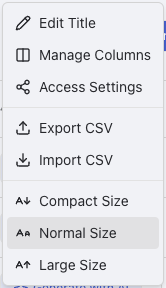
Open the sheet where you want to import data and click the "Import" button in the toolbar
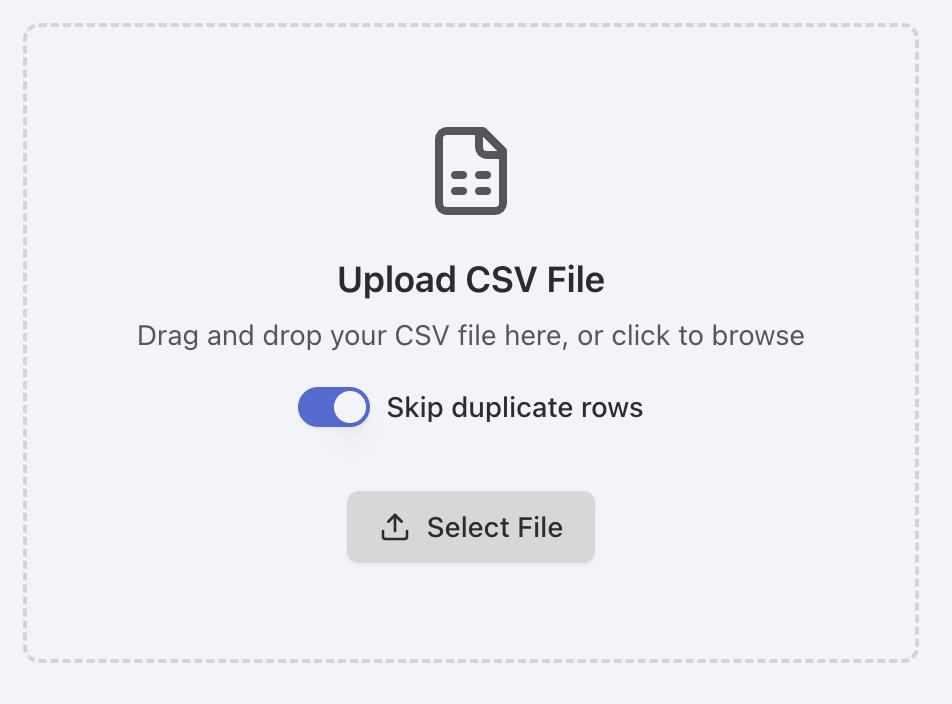
**Upload File**: Click "Select File" to select a CSV file from your device
Choose if duplicate rows should be removed
## Importing Data
### CSV Import
The most common way to bring data into Raycaster is through CSV (Comma-Separated Values) files:
Open the sheet where you want to import data and click the "Import" button in the toolbar
**Upload File**: Click "Select File" to select a CSV file from your device
Choose if duplicate rows should be removed
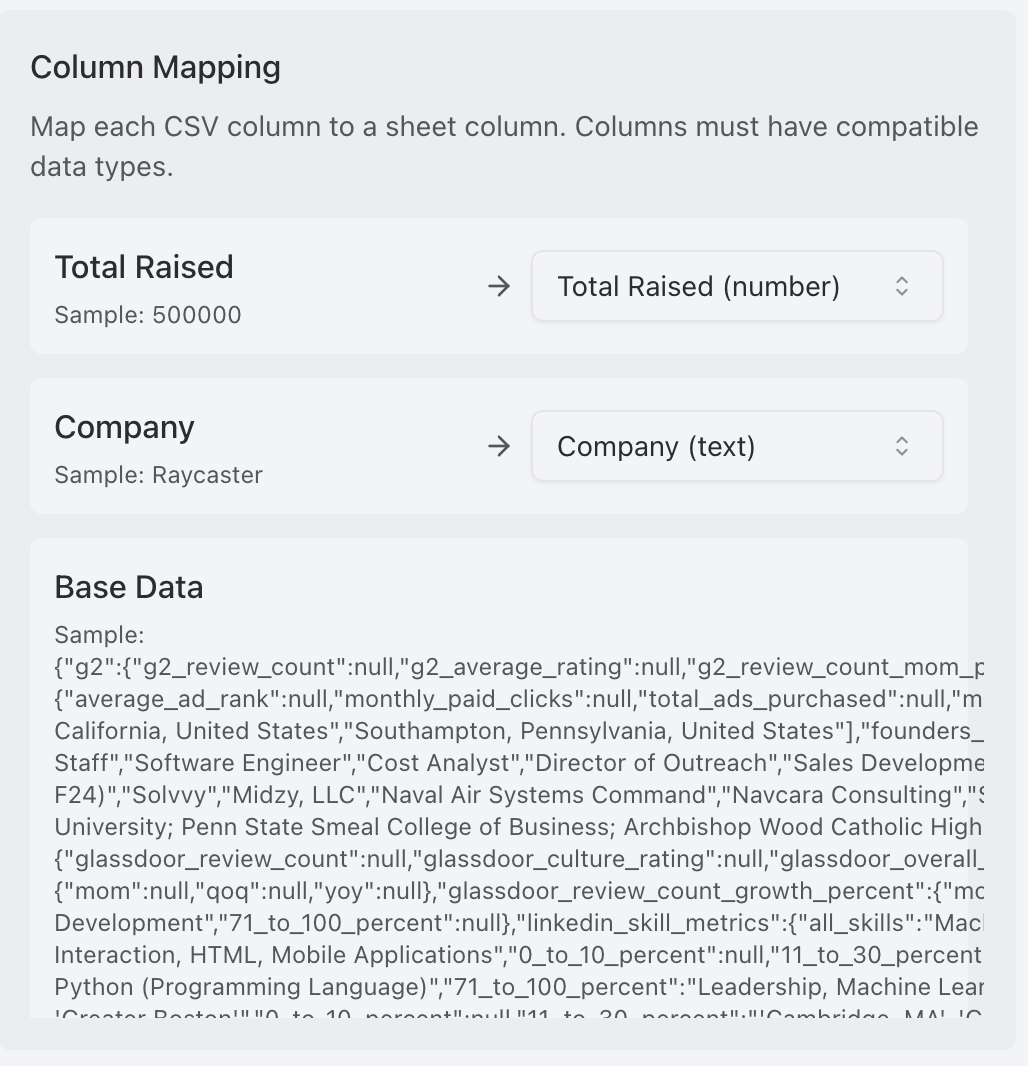
 In the column mapping screen:
* Match columns from your CSV to columns in your sheet
* Use the dropdowns to select the appropriate destination column
* Use "Skip Column" for data you don't want to import in the drop down
* Add new columns if needed from the drop down
In the column mapping screen:
* Match columns from your CSV to columns in your sheet
* Use the dropdowns to select the appropriate destination column
* Use "Skip Column" for data you don't want to import in the drop down
* Add new columns if needed from the drop down
 Check the preview of how your data will be imported
* Verify column mappings are correct
* Ensure data appears as expected
* Check for any errors or warnings
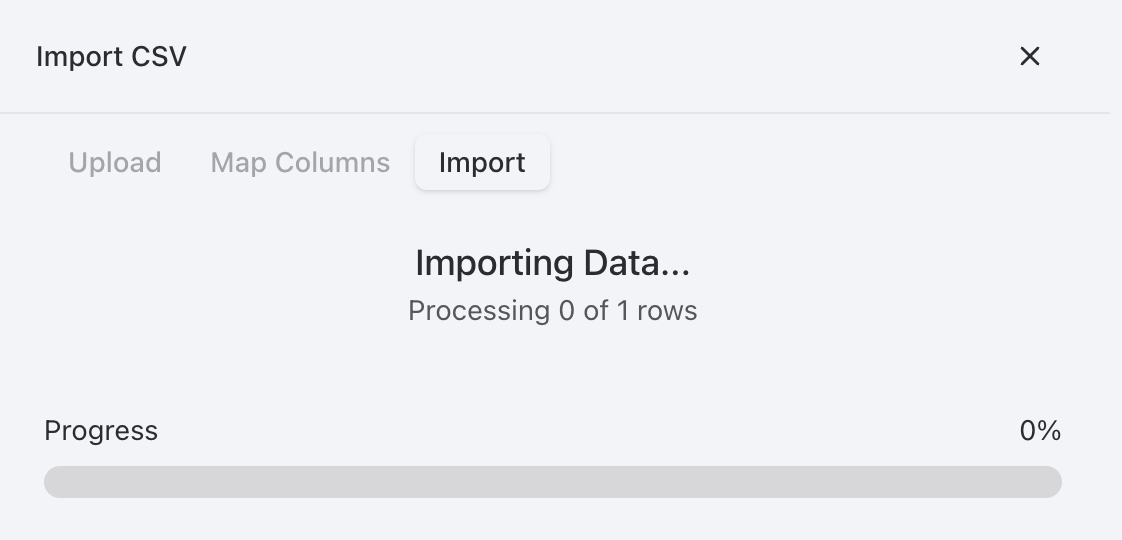
Click "Import Data" to begin the process
* A progress indicator will show the status
* When complete, you'll see a summary of rows imported
Check the preview of how your data will be imported
* Verify column mappings are correct
* Ensure data appears as expected
* Check for any errors or warnings
Click "Import Data" to begin the process
* A progress indicator will show the status
* When complete, you'll see a summary of rows imported
 ### CSV File Requirements
For best results, ensure your CSV files meet these requirements:
* The first row must contain column headers
* For Company sheets: Include domain or URL in standard format (e.g., "company.com" or "company.org")
* For People sheets: Include LinkedIn URLs in standard format ("linkedin.com/in/username")
* Use UTF-8 encoding to support special characters
* Avoid merged cells, formulas, or other spreadsheet-specific features
Enrichment processes run in the background, so you can continue working with your data while research completes. New information will appear as it becomes available.
### Import Troubleshooting
If you encounter issues during import:
| Problem | Solution |
| ------------------------------- | --------------------------------------------------------------------------------- |
| **Missing required columns** | Ensure your CSV includes all columns marked as required in the mapping phase |
| **Data format issues** | Check that dates, numbers, and other special formats match what Raycaster expects |
| **Import fails or times out** | Try breaking larger files into smaller batches for import |
| **Column mapping confusion** | Use the preview feature to verify mappings before confirming the import |
| **Character encoding problems** | Save your CSV with UTF-8 encoding before importing |
## Exporting Data
### CSV Export
The standard way to export data from Raycaster:
Click the "Export" button in the settings dropdown of the sheet you want to export
Click "Export" to generate and download the file
* Large exports may take a few moments to prepare
* Your browser will automatically download the file when ready
### Exporting Selected Rows
To export a specific subset of data:
1. Use filters to show only the data you want to export
2. Click "Export" to download only the selected data
## Handling Large Datasets
Raycaster is optimized for handling large amounts of data:
### Import Strategies for Large Files
For very large datasets (thousands of rows):
1. **Split into batches**: Import 500-1000 rows at a time for better performance
2. **Staged enrichment**: Import all data first, then run research in batches
3. **Prioritize columns**: Select only the most important columns for initial research
### Export Strategies for Large Files
When exporting large datasets:
1. **Filter before export**: Narrow down to just the data you need
2. **Select essential columns**: Export only the columns you require
3. **Consider summary-only exports**: Skip detailed research data if not needed
4. **Use the background export option**: For very large exports (automatic for large sheets)
## Data Integration Best Practices
### Preparing Data for Import
Before importing data:
1. Clean your spreadsheet by removing duplicate entries
2. Standardize formats (dates, numbers, URLs, etc.)
3. Split complex columns into simpler ones if needed
4. Ensure company domains and LinkedIn URLs follow standard formats
5. Create a backup of your original data
### Workflow Integration
Integrate Raycaster with your existing workflows:
1. **CRM Integration**: Export enriched data for import into your CRM system
2. **Regular Updates**: Schedule routine imports to keep data fresh
3. **Collaborative Analysis**: Share exports with team members who don't have Raycaster access
4. **Data Verification Loop**: Export, verify with stakeholders, then re-import corrections
### CSV File Requirements
For best results, ensure your CSV files meet these requirements:
* The first row must contain column headers
* For Company sheets: Include domain or URL in standard format (e.g., "company.com" or "company.org")
* For People sheets: Include LinkedIn URLs in standard format ("linkedin.com/in/username")
* Use UTF-8 encoding to support special characters
* Avoid merged cells, formulas, or other spreadsheet-specific features
Enrichment processes run in the background, so you can continue working with your data while research completes. New information will appear as it becomes available.
### Import Troubleshooting
If you encounter issues during import:
| Problem | Solution |
| ------------------------------- | --------------------------------------------------------------------------------- |
| **Missing required columns** | Ensure your CSV includes all columns marked as required in the mapping phase |
| **Data format issues** | Check that dates, numbers, and other special formats match what Raycaster expects |
| **Import fails or times out** | Try breaking larger files into smaller batches for import |
| **Column mapping confusion** | Use the preview feature to verify mappings before confirming the import |
| **Character encoding problems** | Save your CSV with UTF-8 encoding before importing |
## Exporting Data
### CSV Export
The standard way to export data from Raycaster:
Click the "Export" button in the settings dropdown of the sheet you want to export
Click "Export" to generate and download the file
* Large exports may take a few moments to prepare
* Your browser will automatically download the file when ready
### Exporting Selected Rows
To export a specific subset of data:
1. Use filters to show only the data you want to export
2. Click "Export" to download only the selected data
## Handling Large Datasets
Raycaster is optimized for handling large amounts of data:
### Import Strategies for Large Files
For very large datasets (thousands of rows):
1. **Split into batches**: Import 500-1000 rows at a time for better performance
2. **Staged enrichment**: Import all data first, then run research in batches
3. **Prioritize columns**: Select only the most important columns for initial research
### Export Strategies for Large Files
When exporting large datasets:
1. **Filter before export**: Narrow down to just the data you need
2. **Select essential columns**: Export only the columns you require
3. **Consider summary-only exports**: Skip detailed research data if not needed
4. **Use the background export option**: For very large exports (automatic for large sheets)
## Data Integration Best Practices
### Preparing Data for Import
Before importing data:
1. Clean your spreadsheet by removing duplicate entries
2. Standardize formats (dates, numbers, URLs, etc.)
3. Split complex columns into simpler ones if needed
4. Ensure company domains and LinkedIn URLs follow standard formats
5. Create a backup of your original data
### Workflow Integration
Integrate Raycaster with your existing workflows:
1. **CRM Integration**: Export enriched data for import into your CRM system
2. **Regular Updates**: Schedule routine imports to keep data fresh
3. **Collaborative Analysis**: Share exports with team members who don't have Raycaster access
4. **Data Verification Loop**: Export, verify with stakeholders, then re-import corrections