> ## Documentation Index
> Fetch the complete documentation index at: https://docs.raycaster.ai/llms.txt
> Use this file to discover all available pages before exploring further.
# Sheets
> Create and manage powerful data tables with advanced research capabilities in Raycaster AI
## Understanding Sheets
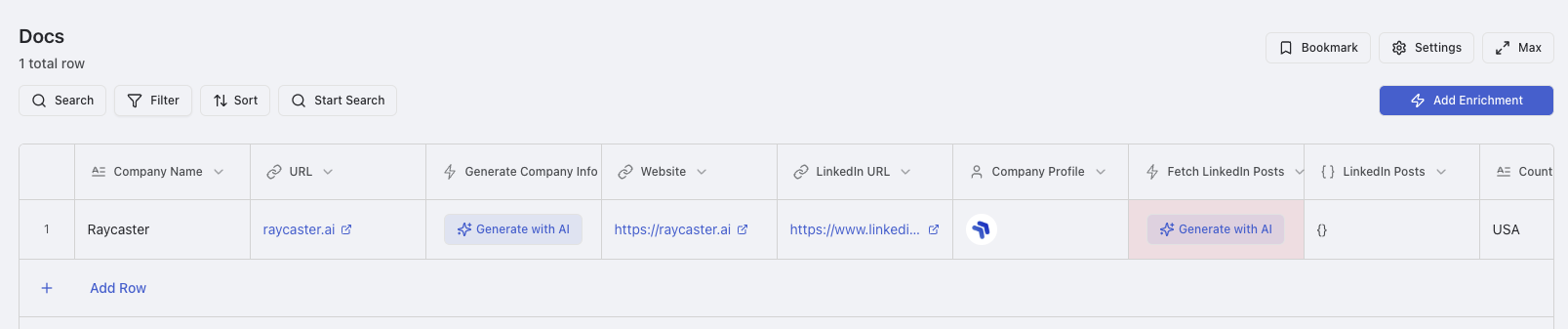
Sheets in Raycaster are powerful data tables designed for research, analysis, and data management in life sciences and biotech. Each sheet combines the familiarity of spreadsheets with advanced AI research capabilities, making them perfect for organizing companies, people, and research data.
 ## Creating Sheets
Sheets follow the [universal creation workflow](/content-management/filesystem#universal-creation-workflow) with these sheet-specific options:
### Creation Options
Upload CSV files to automatically populate sheets with intelligent column mapping and data validation.
Use built-in templates for common research scenarios or create custom templates for your organization.
* Open an existing sheet and click Settings dropdown
* Select "Import CSV" from the dropdown menu
* Upload CSV files to automatically populate the sheet
* Map CSV columns to sheet columns during import
* Handle data validation and cleanup automatically
* In the sheet creation tab, click "From Template"
* Use built-in templates for common research scenarios
* Create custom templates for your organization
* Share templates across team members
* Version control for template updates
## Managing Existing Sheets
### Renaming a Sheet
To rename an existing sheet:
1. Open the sheet you want to rename
2. Click on "Settings"
3. Click "Edit Title"
4. Press Save to save the changes
### Duplicating a Sheet
Creating a copy of an existing sheet:
Open the sheet you want to duplicate, select rows within the sheet by clicking on the checkboxes to the left of the sheet
Click "Duplicate Entire Sheet" or "Duplicate with Selected Rows"
You are also able to download selected rows or all rows by clicking "Download All Rows" or "Download Selected Rows"
## Sheet Searching and Organization
### Finding things within a sheet
To find things within a sheet:
1. Either click "Search" or use ctrl-f (cmd-f for macOS users)
2. Use the search bar to search for text within the sheet
## Creating Sheets
Sheets follow the [universal creation workflow](/content-management/filesystem#universal-creation-workflow) with these sheet-specific options:
### Creation Options
Upload CSV files to automatically populate sheets with intelligent column mapping and data validation.
Use built-in templates for common research scenarios or create custom templates for your organization.
* Open an existing sheet and click Settings dropdown
* Select "Import CSV" from the dropdown menu
* Upload CSV files to automatically populate the sheet
* Map CSV columns to sheet columns during import
* Handle data validation and cleanup automatically
* In the sheet creation tab, click "From Template"
* Use built-in templates for common research scenarios
* Create custom templates for your organization
* Share templates across team members
* Version control for template updates
## Managing Existing Sheets
### Renaming a Sheet
To rename an existing sheet:
1. Open the sheet you want to rename
2. Click on "Settings"
3. Click "Edit Title"
4. Press Save to save the changes
### Duplicating a Sheet
Creating a copy of an existing sheet:
Open the sheet you want to duplicate, select rows within the sheet by clicking on the checkboxes to the left of the sheet
Click "Duplicate Entire Sheet" or "Duplicate with Selected Rows"
You are also able to download selected rows or all rows by clicking "Download All Rows" or "Download Selected Rows"
## Sheet Searching and Organization
### Finding things within a sheet
To find things within a sheet:
1. Either click "Search" or use ctrl-f (cmd-f for macOS users)
2. Use the search bar to search for text within the sheet