> ## Documentation Index
> Fetch the complete documentation index at: https://docs.raycaster.ai/llms.txt
> Use this file to discover all available pages before exploring further.

# Patent Research

> Discover intellectual property and patent information related to your data with Raycaster's patent research capabilities

<div class="mt-4 bg-gradient-to-br from-[#4F5DFF10] to-[#7B85FF15] rounded-xl p-6 pb-8 border border-[#4F5DFF20]">
  <h1 class="text-2xl font-bold mb-2">Patent Research</h1>
  <p class="text-lg opacity-80 mb-4">Automatically discover, analyze, and connect patents to your data for comprehensive intellectual property insights.</p>

  <div class="flex items-center gap-3 mb-4">
    <div class="bg-[#4F5DFF15] p-3 rounded-lg">
      <svg xmlns="http://www.w3.org/2000/svg" viewBox="0 0 24 24" fill="currentColor" class="w-6 h-6 text-[#4F5DFF]">
        <path d="M12.378 1.602a.75.75 0 00-.756 0L3 6.632l9 5.25 9-5.25-8.622-5.03zM21.75 7.93l-9 5.25v9l8.628-5.032a.75.75 0 00.372-.648V7.93zM11.25 22.18v-9l-9-5.25v8.57a.75.75 0 00.372.648l8.628 5.033z" />
      </svg>
    </div>

    <div>
      <h3 class="font-medium">IP Discovery</h3>
      <p class="text-sm opacity-75">Find patents related to specific technologies, companies, or people</p>
    </div>
  </div>

  <div class="flex items-center gap-3 mb-4">
    <div class="bg-[#4F5DFF15] p-3 rounded-lg">
      <svg xmlns="http://www.w3.org/2000/svg" viewBox="0 0 24 24" fill="currentColor" class="w-6 h-6 text-[#4F5DFF]">
        <path fillRule="evenodd" d="M14.447 3.027a.75.75 0 01.527.92l-4.5 16.5a.75.75 0 01-1.448-.394l4.5-16.5a.75.75 0 01.921-.526zM16.72 6.22a.75.75 0 011.06 0l5.25 5.25a.75.75 0 010 1.06l-5.25 5.25a.75.75 0 11-1.06-1.06L21.44 12l-4.72-4.72a.75.75 0 010-1.06zm-9.44 0a.75.75 0 010 1.06L2.56 12l4.72 4.72a.75.75 0 11-1.06 1.06L.97 12.53a.75.75 0 010-1.06l5.25-5.25a.75.75 0 011.06 0z" clipRule="evenodd" />
      </svg>
    </div>

    <div>
      <h3 class="font-medium">Patent Analysis</h3>
      <p class="text-sm opacity-75">Extract key patent information including claims, filing dates, and inventors</p>
    </div>
  </div>

  <div class="flex items-center gap-3">
    <div class="bg-[#4F5DFF15] p-3 rounded-lg">
      <svg xmlns="http://www.w3.org/2000/svg" viewBox="0 0 24 24" fill="currentColor" class="w-6 h-6 text-[#4F5DFF]">
        <path d="M19.906 9c.382 0 .749.057 1.094.162V9a3 3 0 00-3-3h-3.879a.75.75 0 01-.53-.22L11.47 3.66A2.25 2.25 0 009.879 3H6a3 3 0 00-3 3v3.162A3.756 3.756 0 014.094 9h15.812zM4.094 10.5a2.25 2.25 0 00-2.227 2.568l.857 6A2.25 2.25 0 004.951 21H19.05a2.25 2.25 0 002.227-1.932l.857-6a2.25 2.25 0 00-2.227-2.568H4.094z" />
      </svg>
    </div>

    <div>
      <h3 class="font-medium">Relationship Mapping</h3>
      <p class="text-sm opacity-75">Connect patents to your existing data for comprehensive IP landscapes</p>
    </div>
  </div>
</div>

## Understanding Patent Research

Raycaster's Patent Research capability enables you to automatically discover and analyze intellectual property relevant to your data. This feature searches through patent databases and extracts key information about patents related to specific drugs, technologies, companies, or scientific concepts.

### What Patent Research Can Do

Patent Research helps you:

1. **Discover relevant patents** related to specific data points in your tables
2. **Extract key patent information** including filing dates, inventors, assignees, and claims
3. **Analyze patent landscapes** to understand IP positioning and competitive advantages
4. **Identify technology trends** by examining patent activity over time
5. **Map relationships** between patents, companies, and technologies

The Patent Research capability works with the Research column type.

## How Patent Research Works

<div class="bg-gradient-to-r from-[#4F5DFF08] to-transparent p-1 rounded-xl mb-6">
  <div class="flex flex-col md:flex-row gap-4 p-3">
    <div class="flex-1 border border-[#4F5DFF20] bg-white dark:bg-gray-900 rounded-lg p-4 relative overflow-hidden">
      <div class="absolute top-0 left-0 w-full h-1 bg-[#4F5DFF]" />

      <div class="flex items-center mb-2">
        <div class="bg-[#4F5DFF] text-white w-6 h-6 rounded-full flex items-center justify-center mr-3 text-sm font-semibold">1</div>
        <h3 class="font-medium">Identify Source Data</h3>
      </div>

      <p class="text-sm pl-9">The system identifies the data to research, such as drug names, technologies, or companies in your selected column.</p>
    </div>

    <div class="flex-1 border border-[#4F5DFF20] bg-white dark:bg-gray-900 rounded-lg p-4 relative overflow-hidden">
      <div class="absolute top-0 left-0 w-full h-1 bg-[#4F5DFF]" />

      <div class="flex items-center mb-2">
        <div class="bg-[#4F5DFF] text-white w-6 h-6 rounded-full flex items-center justify-center mr-3 text-sm font-semibold">2</div>
        <h3 class="font-medium">Search Patent Databases</h3>
      </div>

      <p class="text-sm pl-9">Raycaster gets to work, utilizing multiple sources and AI agents to get the most relevant patents that match the criteria.</p>
    </div>
  </div>

  <div class="flex flex-col md:flex-row gap-4 p-3">
    <div class="flex-1 border border-[#4F5DFF20] bg-white dark:bg-gray-900 rounded-lg p-4 relative overflow-hidden">
      <div class="absolute top-0 left-0 w-full h-1 bg-[#4F5DFF]" />

      <div class="flex items-center mb-2">
        <div class="bg-[#4F5DFF] text-white w-6 h-6 rounded-full flex items-center justify-center mr-3 text-sm font-semibold">3</div>
        <h3 class="font-medium">Analyze Patent Documents</h3>
      </div>

      <p class="text-sm pl-9">The system extracts and analyzes key information from patent documents, including claims, assignees, inventors, filing dates, and technology classifications.</p>
    </div>

    <div class="flex-1 border border-[#4F5DFF20] bg-white dark:bg-gray-900 rounded-lg p-4 relative overflow-hidden">
      <div class="absolute top-0 left-0 w-full h-1 bg-[#4F5DFF]" />

      <div class="flex items-center mb-2">
        <div class="bg-[#4F5DFF] text-white w-6 h-6 rounded-full flex items-center justify-center mr-3 text-sm font-semibold">4</div>
        <h3 class="font-medium">Present Structured Results</h3>
      </div>

      <p class="text-sm pl-9">Research results are formatted according to your column type with structured patent data, citations, and links to original documents.</p>
    </div>
  </div>
</div>

## Setting Up Patent Research

Follow these steps to set up and use Patent Research in your workspace:

<Steps>
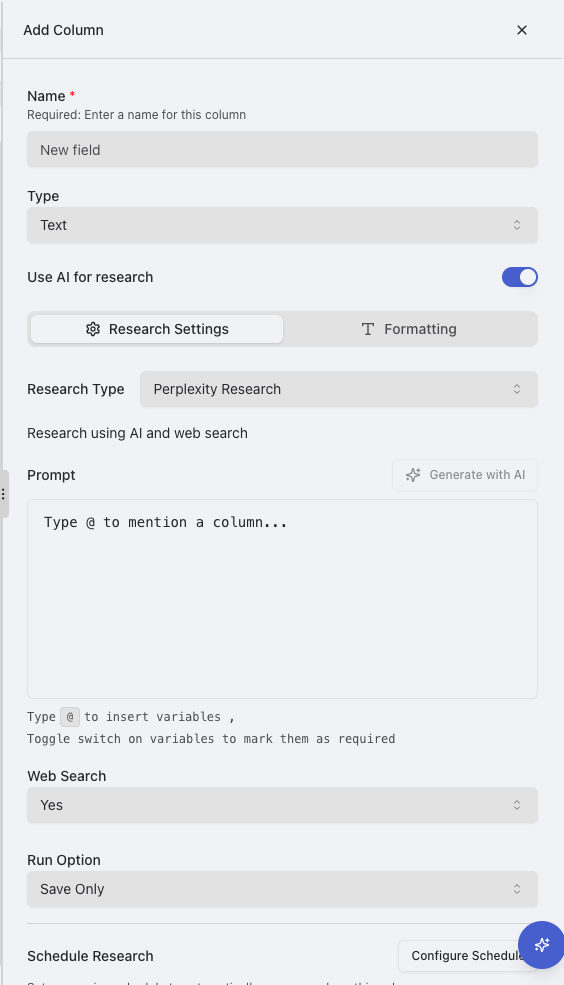
  <Step title="Create or Select a Column">
    Start by identifying which column contains the data you want to research (e.g., drug names, company names, or technology descriptions). Either use an existing column or create a new one.

    <img src="https://mintcdn.com/raycaster/NkwkAu8IAZ9zTAYr/images/add-column.png?fit=max&auto=format&n=NkwkAu8IAZ9zTAYr&q=85&s=038a15c5a54034836c729253134c52c6" alt="Select or Create Column" class="rounded-lg border border-gray-200 dark:border-gray-700 my-2" width="564" height="985" data-path="images/add-column.png" />
  </Step>

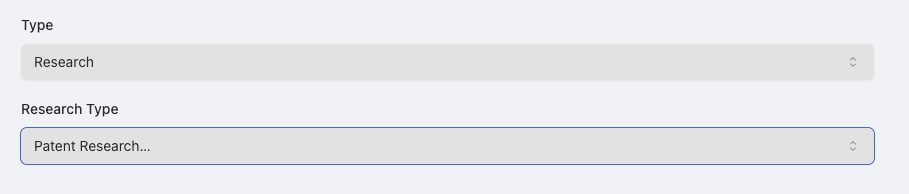
  <Step title="Create a Research Column">
    Create a new column where the patent research results will appear:

    1. Click the "+" button at the right end of your column headers
    2. Choose a name for your column (e.g., "Patent Information")
    3. Select the "Research" column type and Patent "Research" type

    <img src="https://mintcdn.com/raycaster/7UelhNhIiWBOCuCS/images/patent-type.png?fit=max&auto=format&n=7UelhNhIiWBOCuCS&q=85&s=5cf88fcee0d46db73638bf3690d1c97e" alt="Create Research Column" class="rounded-lg border border-gray-200 dark:border-gray-700 my-2" width="909" height="194" data-path="images/patent-type.png" />
  </Step>

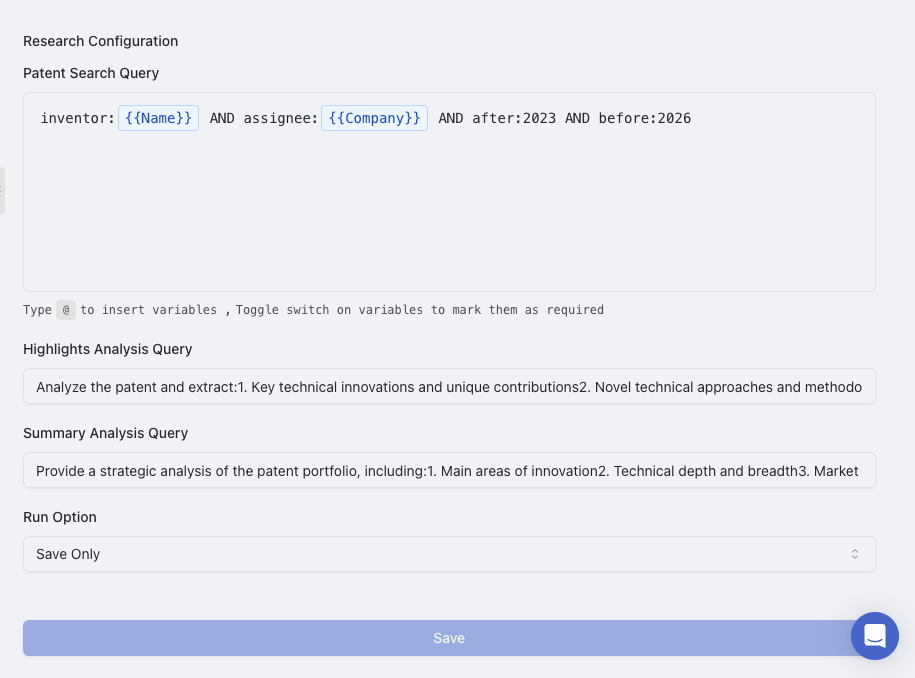
  <Step title="Configure Research Settings">
    Configure the column for patent research:

    1. In the column editor, scroll to the "Research Configuration" section
    2. Enter a custom patent search query or utilize the default query provided
    3. Provide a prompt for the highlights and summary analyis, emphasizing key aspects that you want the highlights and summaries to representation.

    <Note>
      Helpful Tip: Utilizing the '@' character within the search query allows you to utilize variables from other columns. For example, names of companies or people.
    </Note>

    <img src="https://mintcdn.com/raycaster/7UelhNhIiWBOCuCS/images/patent-config.png?fit=max&auto=format&n=7UelhNhIiWBOCuCS&q=85&s=a195860186c365a297797471d4e00f6e" alt="Configure Research Settings" class="rounded-lg border border-gray-200 dark:border-gray-700 my-2" width="915" height="678" data-path="images/patent-config.png" />
  </Step>

  <Step title="Save Your Configuration">
    Save your column configuration:

    1. Click "Save" to save your column settings
    2. Alternatively, select "Save & Run All" to immediately start research for all rows
  </Step>
</Steps>

## Running Patent Research

Once your column is configured, you can run patent research  for a cell by clicking the research button
You can also run patent research on a whole column with the "Save & Run All" option.

<img src="https://mintcdn.com/raycaster/7UelhNhIiWBOCuCS/images/run-research.png?fit=max&auto=format&n=7UelhNhIiWBOCuCS&q=85&s=119033f9bcb803e1bc8b5b15ae0235ba" alt="Publication Results" class="rounded-lg border border-gray-200 dark:border-gray-700 my-2 items-center" width="151" height="58" data-path="images/run-research.png" />

## Understanding Patent Research Results

Patent research results provide structured information about patents related to your data:

### Types of Information Included

Depending on your research prompt and column configuration, patent research can provide:

* **Patent Identification**: Patent numbers, application numbers, and document IDs
* **Filing Information**: Filing dates, publication dates, and priority dates
* **Expiration Data**: Patent expiration dates and term adjustments
* **Ownership**: Assignees, inventors, and ownership transfers
* **Technical Content**: Claims, abstracts, and technical descriptions
* **Classifications**: IPC, CPC, and US classifications
* **Legal Status**: Current status, litigation history, and maintenance fee information
* **Citations**: Forward and backward citations to related patents
* **Family Information**: Related patents in different jurisdictions

### Viewing Detailed Results

When you click on a cell containing patent research results, the side panel will open with comprehensive information:
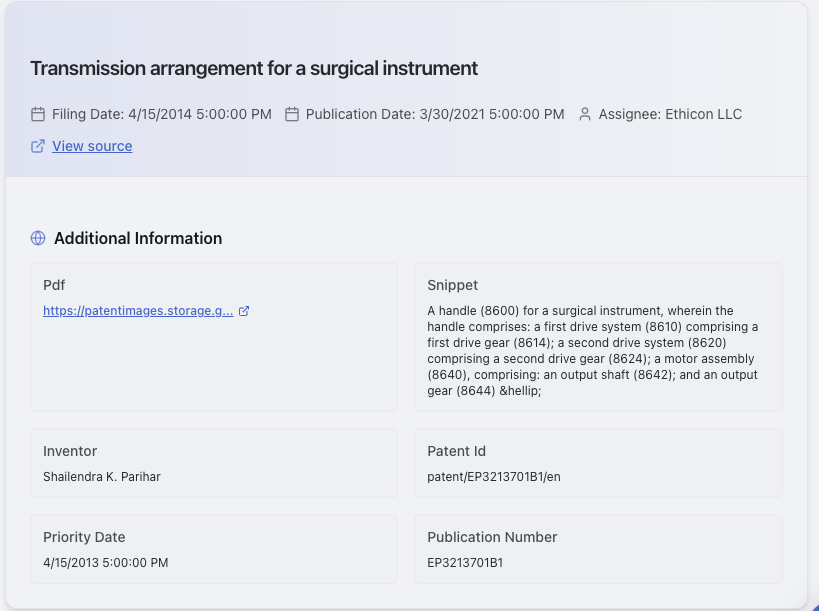
<h4 class="font-medium mb-2">Main Results View</h4>

<ul class="list-disc pl-5 text-sm space-y-1">
  <li>Summary of patents found</li>
  <li>List of most relevant patents</li>
  <li>Key information for each patent</li>
  <li>Links to original patent documents</li>
</ul>

<img src="https://mintcdn.com/raycaster/7UelhNhIiWBOCuCS/images/patent-display.png?fit=max&auto=format&n=7UelhNhIiWBOCuCS&q=85&s=863a2b745ea888100a759112e8a21eba" alt="Main Results View" class="rounded-lg border border-gray-200 dark:border-gray-700 mt-2" width="819" height="611" data-path="images/patent-display.png" />

## Patent Research Use Cases

<CardGroup cols={2}>
  <Card title="Technology Landscape Analysis" icon="layer-group" color="#4F5DFF">
    <div class="text-sm">
      Map out the patent landscape in a specific technology area to understand key players, trends, and whitespace opportunities.
    </div>
  </Card>

  <Card title="Competitive Intelligence" icon="binoculars" color="#4F5DFF">
    <div class="text-sm">
      Analyze competitors' patent portfolios to understand their technology positioning, R\&D focus, and potential future products.
    </div>
  </Card>

  <Card title="Freedom to Operate" icon="unlock" color="#7B85FF">
    <div class="text-sm">
      Identify potential patent barriers for new products or technologies to avoid infringement risks.
    </div>
  </Card>

  <Card title="Outbound Messages" icon="envelope" color="#7B85FF">
    <div class="text-sm">
      Provides the ability to send targeted outreach taliored to patents for outreach.
    </div>
  </Card>
</CardGroup>

## Optimizing Patent Research Results

Follow these best practices to get the most accurate and useful patent research results:

### Tips for Better Patent Research

1. **Be specific about patent types** - Clearly specify what types of patents you're interested in (e.g., composition patents, method patents, formulation patents)

2. **Include relevant technical terms** - Use precise technical terminology that would appear in patents related to your area of interest

3. **Specify date ranges** - Indicate whether you want recent patents, historical patents, or a specific time period

4. **Mention key jurisdictions** - Specify if you're particularly interested in US patents, European patents, or global coverage

5. **Request specific metadata** - Clearly state what patent information is most important (filing dates, assignees, claims, etc.)

6. **Use filtering criteria** - Include parameters to filter results (e.g., only active patents, only patents from certain companies)

7. **Request specific organization** - Indicate how you want results organized (chronologically, by relevance, by assignee, etc.)

<Warning>
  Patent research works best when your source data is specific. Generic terms may return too many unrelated patents, while highly specific compound names or technologies will yield more relevant results.
</Warning>