
Documentation Index
Fetch the complete documentation index at: https://docs.raycaster.ai/llms.txt
Use this file to discover all available pages before exploring further.
Overview
The Outlook integration connects your Microsoft email account to Raycaster, letting you send emails, sync your inbox, and run email sequences — all from within your workspace.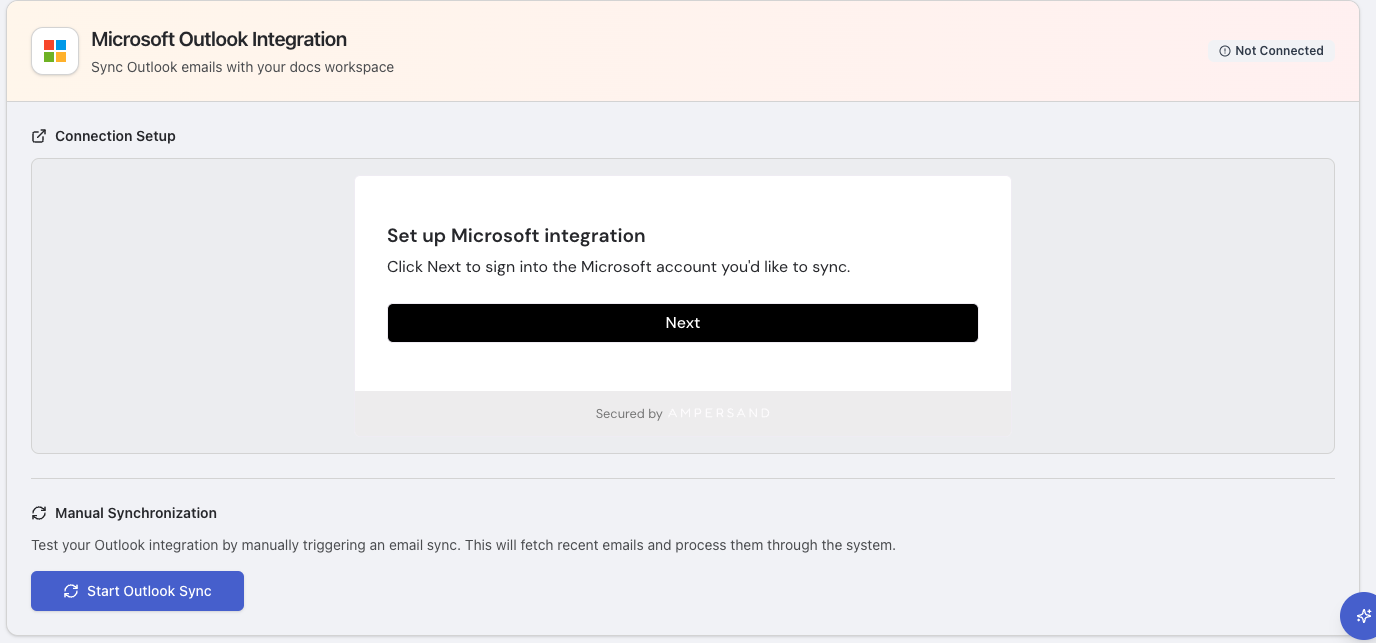
Setting Up Outlook
Add Outlook
Find the Microsoft section and click “Add Integration” (or “Add Another Account” if you already have one connected).
Choose Scope
Select how this account should be shared:
- Personal — Only you can send from and view emails for this account
- Organization — All team members can use this account
Sign In
Click to authorize with Microsoft. You’ll be redirected to Microsoft’s sign-in page to grant permission.Permissions requested:
- Read your emails
- Send emails on your behalf
- Read your profile information
Multiple Accounts
Outlook supports connecting multiple accounts. For example, you might connect:- Your personal work email as a Personal integration
- A shared department mailbox as an Organization integration
Syncing Emails
Once connected, you can sync your Outlook inbox to Raycaster:- Manual sync — Click the Sync button on the integrations page to pull in recent emails on demand
- View emails — Navigate to the Emails page (
/emails) to see all synced emails - Search — Search across all synced emails from within Raycaster
Sync Details
- Emails are transformed into a unified format for consistent display
- Read/unread status is preserved
- Conversation threads are maintained (using Microsoft’s
conversationId) - Sync includes recent emails (configurable time range)
Sending Emails
With Outlook connected, you can send emails from:- Sheet Email Composer — Select rows and compose emails with variables
- Email Sequences — Automated multi-step campaigns
- AI Chat — Ask the AI assistant to send emails on your behalf
Status Monitoring
The integrations page shows real-time status for each Outlook connection:| Indicator | Meaning |
|---|---|
| Green checkmark | Active and working. Shows connected email and account details. |
| Gray circle | Not connected or inactive. |
| Red alert | Error detected. Check error details for troubleshooting. |
Troubleshooting
OAuth authorization fails
OAuth authorization fails
Emails not syncing
Emails not syncing
- Click the manual Sync button to trigger a fresh sync
- Verify the integration shows an active (green) status
- Check if the connected email address is correct
- Microsoft token refresh is handled automatically, but reconnecting may fix token issues
Emails failing to send
Emails failing to send
- Confirm the integration is still active
- Verify the recipient email address is valid
- Check the failed email’s error details on the Emails page
- For organizational accounts, verify your admin hasn’t restricted send permissions
Admin consent required
Admin consent required
Some Microsoft organizations require an admin to approve third-party app access. If you see a “needs admin approval” message:
- Contact your IT administrator
- They need to grant consent for the Raycaster application in Azure AD
- Once approved, you can retry the connection
Disconnecting
To remove an Outlook connection:- Go to Settings → Integrations
- Find the Outlook integration you want to remove
- Click Disconnect (or the uninstall button)
- Confirm the removal