
Documentation Index
Fetch the complete documentation index at: https://docs.raycaster.ai/llms.txt
Use this file to discover all available pages before exploring further.
How the Workspace Works
The workspace is a hierarchical file tree — similar to Google Drive — where you organize your project’s documents into folders and artifacts. Under the hood, it uses a Git-like staging model so you can preview changes before committing them.Core Concepts
Committed State
The current “main” version of your project. This is what all team members see by default.
Staging Workspace
Your personal working area where edits (uploads, renames, moves, deletes) are staged before committing.
File Operations
All workspace operations are staged first, then committed:| Operation | Description |
|---|---|
| Upload | Add new PDF, DOCX, XLSX, or text files |
| Create Directory | Organize files into folders |
| Rename | Change a file or folder name |
| Move | Relocate files between folders |
| Delete | Remove files or folders |
| Replace | Upload a new version of an existing file |
Staging & Committing
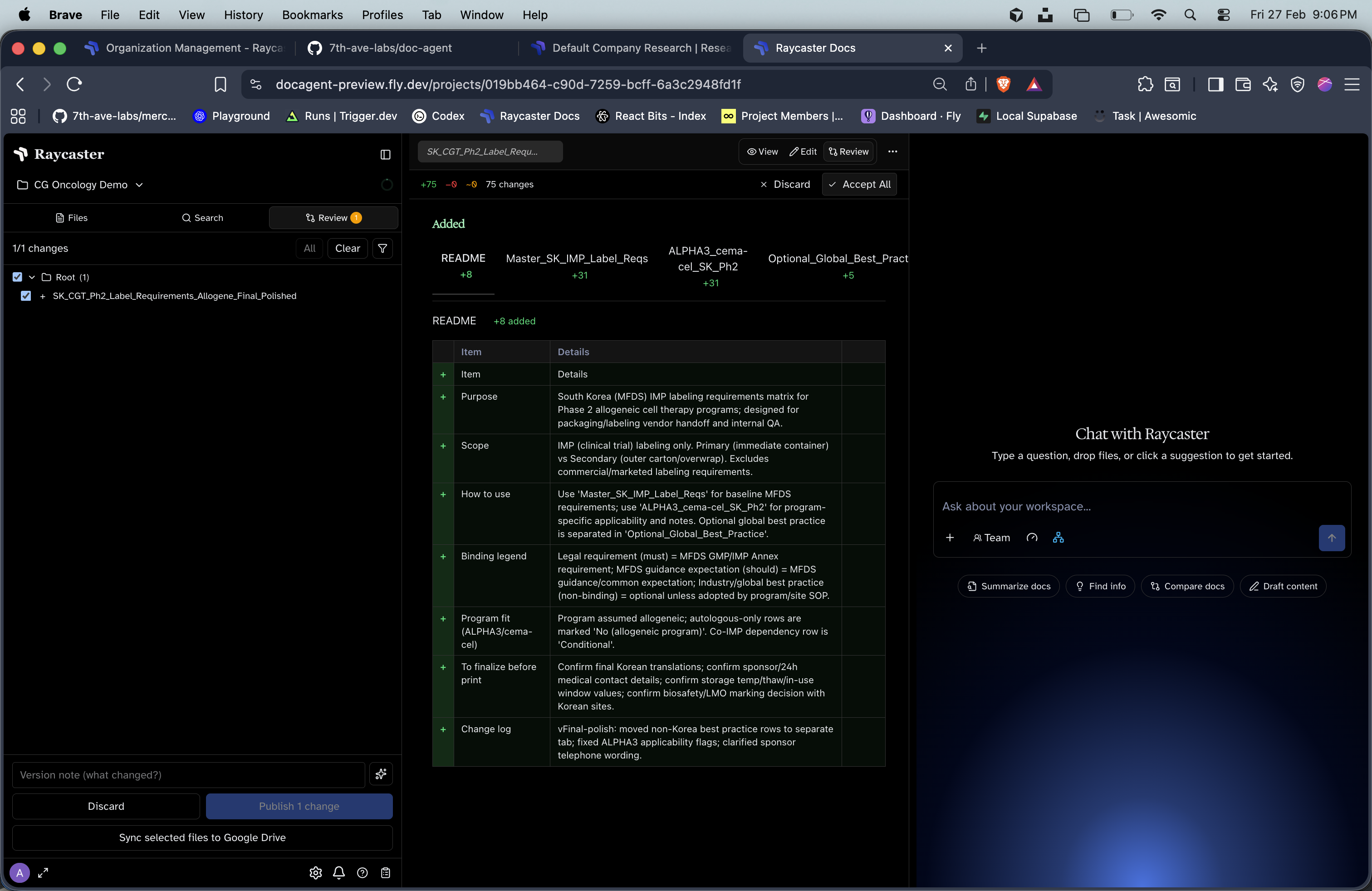
Make changes
Upload, rename, move, or delete files. All changes are staged in your personal workspace.
Review the diff
Open the workspace panel to see a summary of all staged changes — adds, renames, moves, and deletes.
Commit
Commit your changes to merge them into the project’s main state. You can also selectively commit specific changes.
Version History
Every commit creates a versioned snapshot. You can:- Browse commit history for any artifact
- View any previous version of a document
- Compare what changed between versions
Collaboration
- Each team member gets their own staging workspace — no conflicts while editing
- Changes only become visible to others after committing
- Project roles (Admin, Member, Visitor) control who can commit vs. only stage changes