
Documentation Index
Fetch the complete documentation index at: https://docs.raycaster.ai/llms.txt
Use this file to discover all available pages before exploring further.
Overview
Email sequences let you create multi-step email campaigns that send automatically over time. Build sequences visually with a drag-and-drop builder, set wait times between steps, and track progress as emails are delivered.Key Concepts
| Concept | Description |
|---|---|
| Sequence | A multi-step email campaign with recipients. Created from a sheet with selected rows. |
| Template | A reusable sequence blueprint without recipients. Can be applied to different sheets and contacts. |
| Node | A single step in the sequence — either an email to send or a wait period. |
| Wait Node | A pause between steps (e.g., wait 2 days before the follow-up). |
Creating a Sequence
Sequences are always created from a sheet with selected recipients:Select Recipients
In your sheet, select the rows for the people you want to include in the sequence using the checkboxes.
Open Sequence Composer
Click the Sequence button in the toolbar. This is separate from the single-email button.
Choose How to Start
You have two options:
- Create New Sequence — Opens the visual sequence builder to design a new sequence from scratch
- Choose from Templates — Pick from your saved sequence templates or system templates
Build Your Sequence
Use the visual builder to add email nodes and wait nodes. Write the content for each email step using
{{variables}} from your sheet columns.Visual Sequence Builder
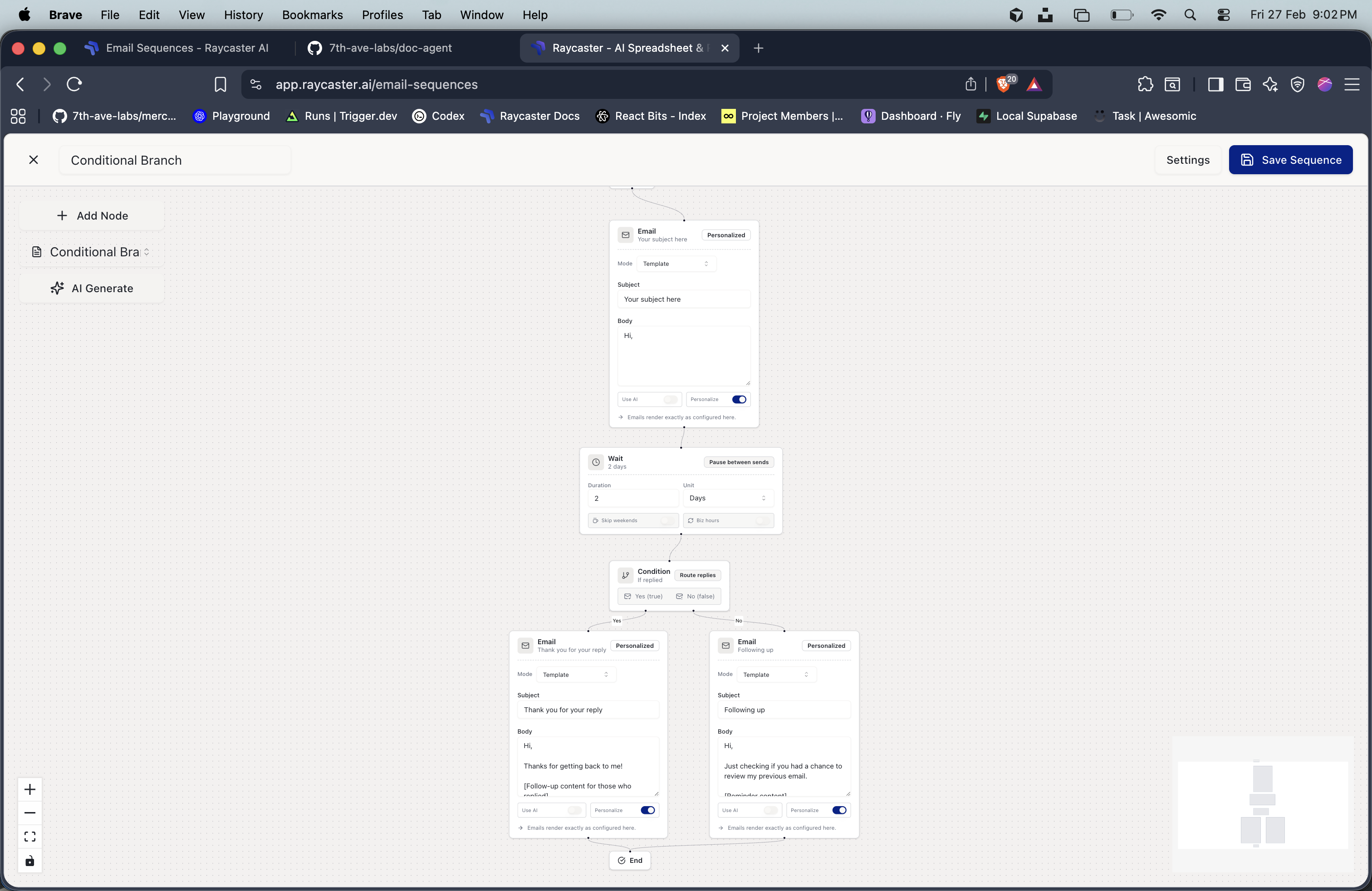
- Add Email Nodes — Each node represents one email in the sequence with its own subject and body
- Add Wait Nodes — Set delays between emails (minutes, hours, days, or weeks)
- Connect Nodes — Draw connections to define the order of steps
- Configure Each Step — Click on any node to edit its content and settings
Wait Time Rules
Since sequences are executed by an automated job that runs every 5 minutes:| Unit | Minimum Wait |
|---|---|
| Minutes | 10 minutes |
| Hours | 1 hour |
| Days | 1 day |
| Weeks | 1 week |
Wait times of less than 10 minutes are not supported because the execution engine processes sequences in 5-minute intervals.
Sequence Lifecycle
Once created, a sequence progresses through these statuses:| Status | Description |
|---|---|
| Draft | Sequence is being set up. Emails can still be edited. |
| Scheduled | Set to start at a specific time. |
| Active | Sequence is running. Emails are being sent according to the schedule. |
| Paused | Temporarily halted. Can be resumed. |
| Completed | All steps have been executed for all recipients. |
| Stopped | Manually stopped. Cannot be resumed. |
| Failed | An error prevented execution. Check error details. |
Managing Active Sequences
From the Email Sequences page (/email-sequences), the Active Sequences tab shows all running, paused, and completed sequences. For each sequence you can:
- Start — Begin a draft or scheduled sequence
- Pause — Temporarily halt an active sequence
- Stop — Permanently stop a sequence (cannot be resumed)
- Delete — Remove the sequence and its associated drafts
Variable Resolution in Sequences
Sequence emails use the same{{Column Name}} variable syntax as regular emails. Variables are resolved at the time each step executes, pulling the latest data from the linked sheet row.
Example multi-step sequence:
Step 1 (Day 0):
Execution Engine
The sequence execution engine runs automatically:- Every 5 minutes, the system checks for sequences that need processing
- For each active sequence, it identifies the next email to send for each recipient
- Variables are resolved from the latest sheet row data
- Emails are sent through the connected email integration (Gmail or Outlook)
- Progress is tracked — sent count, replied count, and any failures
Tracking and Analytics
Each sequence tracks:- Total recipients — How many people are in the sequence
- Sent count — How many emails have been successfully sent
- Reply count — How many recipients have replied (via thread tracking)
- Failed count — How many emails failed to send
- Current step — Which step the sequence is currently executing
Next Steps
Sequence Templates
Learn how to create and manage reusable sequence templates
Composing Emails
Master email composition with templates and AI drafts