
Documentation Index
Fetch the complete documentation index at: https://docs.raycaster.ai/llms.txt
Use this file to discover all available pages before exploring further.
Overview
Sequence templates are reusable blueprints for email sequences. They define the structure, timing, and content of a multi-step campaign without being tied to specific recipients. Your team can save successful sequences as templates and reuse them across different sheets and outreach campaigns.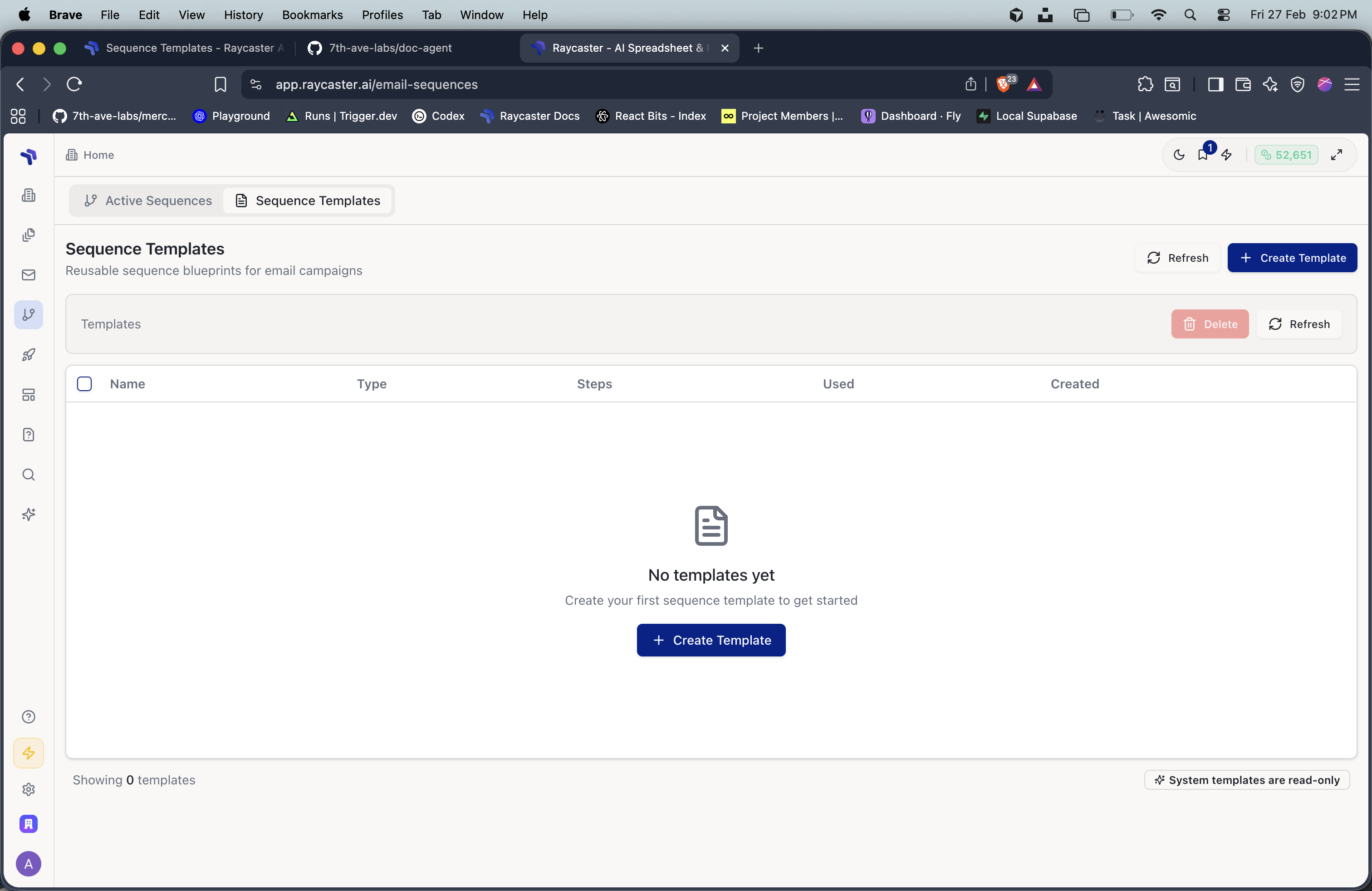
Templates vs Sequences
| Template | Sequence | |
|---|---|---|
| Recipients | None — it’s a blueprint | Attached to specific sheet rows |
| Execution | Cannot run on its own | Runs and sends emails |
| Created from | Sequence Templates page or by saving a sequence | Sheet with selected rows |
| Shared with | Entire organization | Visible based on integration access |
Creating a Template
There are two ways to create a sequence template:From the Templates Page
Navigate to Templates
Go to Email Sequences (
/email-sequences) and click the Sequence Templates tab.Design the Sequence
Add email nodes and wait nodes. Write the content for each step using
{{variable}} placeholders. Give the template a descriptive name.From an Existing Sequence
When you’ve built a sequence that works well, you can save its structure as a template for future use. This preserves the email content, timing, and structure while removing the recipient-specific data.Using a Template
When creating a new sequence from a sheet:Pick a Template
Browse your organization’s templates and system templates. Preview the steps, timing, and content before selecting.
Managing Templates
From the Sequence Templates tab, you can:- View — Click on any template to see its full structure and content in the detail panel
- Edit — Modify the template’s content, timing, or structure
- Delete — Remove templates you no longer need (supports bulk delete)
- Track Usage — See how many times each template has been used
Template Best Practices
Name templates clearly
Name templates clearly
Use descriptive names that indicate the purpose, audience, and number of steps. For example: “3-Step Biotech Partnership Outreach” or “Follow-up After Conference Meeting”.
Use variables generically
Use variables generically
Design templates with common column names like
{{First Name}}, {{Company}}, and {{Title}} so they work across different sheets. Avoid highly specific column names that may not exist in other sheets.Space out your steps
Space out your steps
Allow enough time between emails for recipients to read and respond. A common pattern is Day 0, Day 3, Day 7 for a three-step sequence.
Keep sequences focused
Keep sequences focused
Aim for 2-4 steps per sequence. Longer sequences have diminishing returns and may feel spammy to recipients.